


A Global Filter is a powerful administrative tool that allows you to apply automatic rules to all email accounts under your domain simultaneously. It is the most efficient solution for implementing corporate security policies or managing information flow at an organizational level.
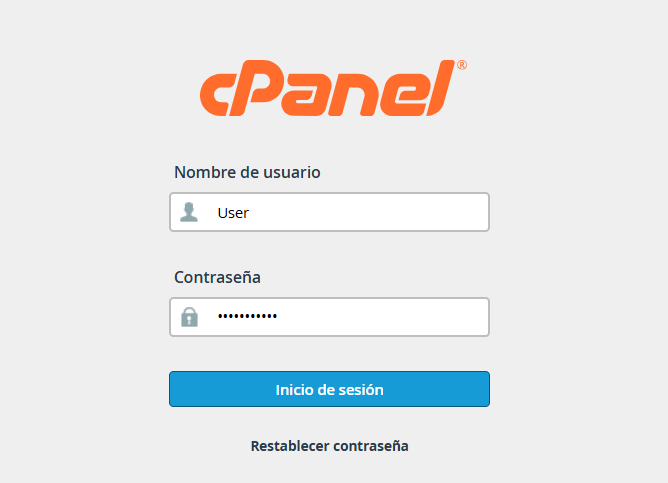
1. Log in to your cPanel control panel.
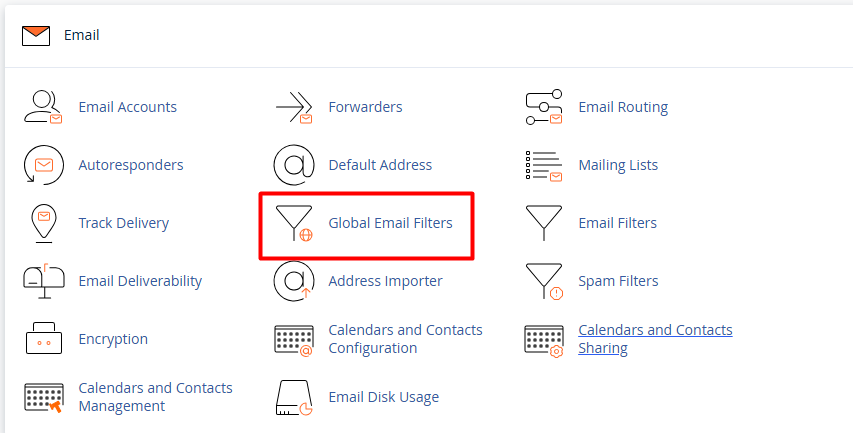
2. In the Email section, click on Global Email Filters.
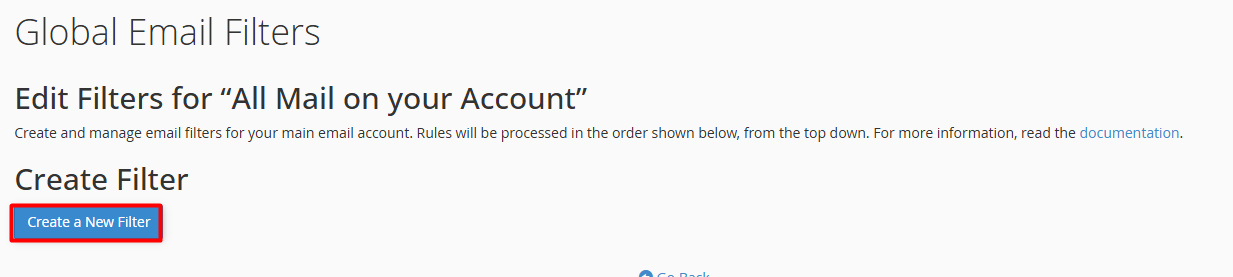
3. Click the blue Create a New Filter button.
4. Set the rules:
4.1. Filter Name: Assign a unique and clear name to identify the rule's function.
4.2. Rules: Select the matching parameter (Example., "Body", "From", or "Subject") and define the condition (e.g., "contains", "begins with").
4.3. Actions: Determine the instruction the server should execute, such as "Discard Message", "Redirect to Email", or "Deliver to Folder".
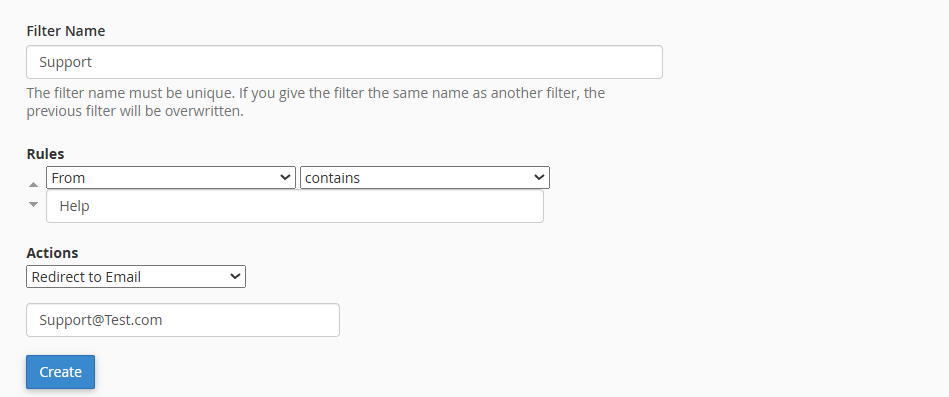
Click the Create button.
Note: From this moment on, the system will automatically process every incoming email in your domain based on these criteria before they reach individual inboxes.
