


To ensure the integrity of your information, we have designed a simple and efficient process to generate backups directly from your control panel.
Follow these steps to create a backup and store it securely in your directory:
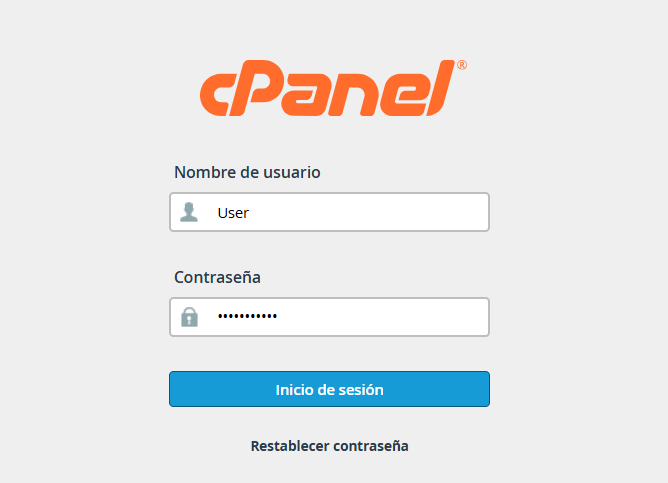
1. Log in to your cPanel account using your administrative credentials.
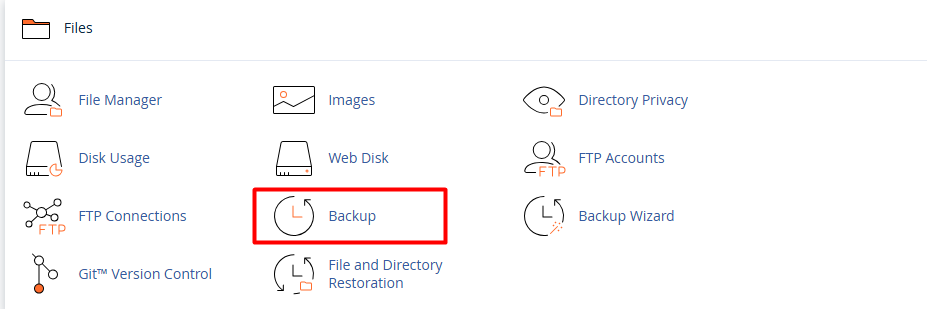
2. Locate the "Files" section and select the "Backup" option.
3. Under the "Full Backup" section, click the "Download a Full Website Backup" button.

4. Destination Settings:
4.1. In the "Backup Destination" dropdown menu, ensure you select "Home Directory."
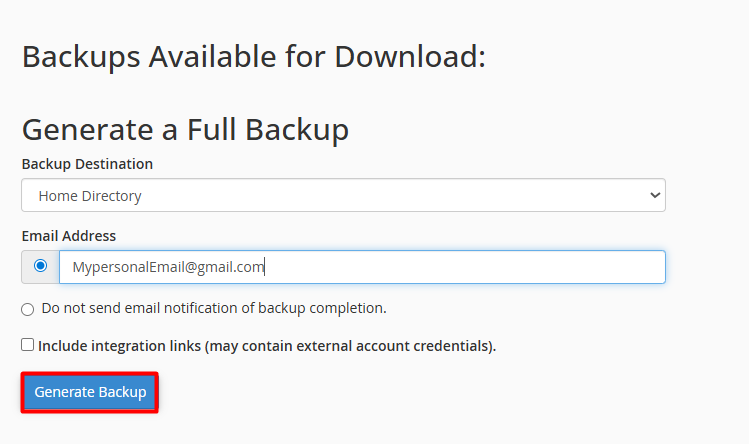
4.2. Optional: Enter your email address if you wish to receive a notification once the process is complete.
5. Click the "Generate Backup" button.
Note: The system will begin packaging your files, databases, and configurations. Once finished, you will find a file with a
.tar.gz extension inside your File Manager, ready to be downloaded or kept as a security measure.