


To create a corporate email account linked to your domain, please follow this detailed procedure:
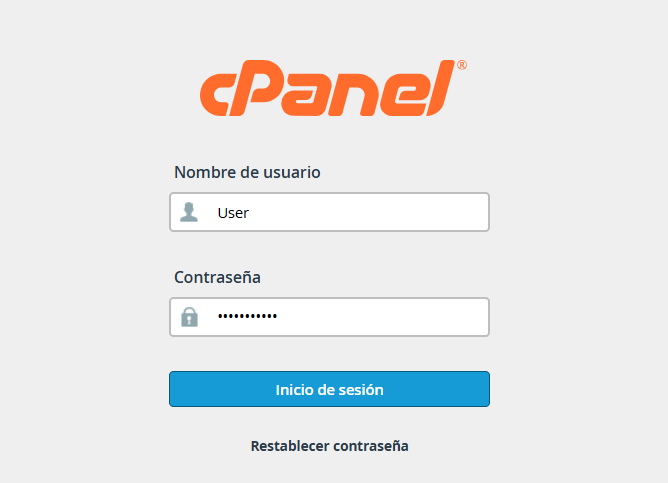
- Log in to your cPanel interface using the credentials sent to your email.
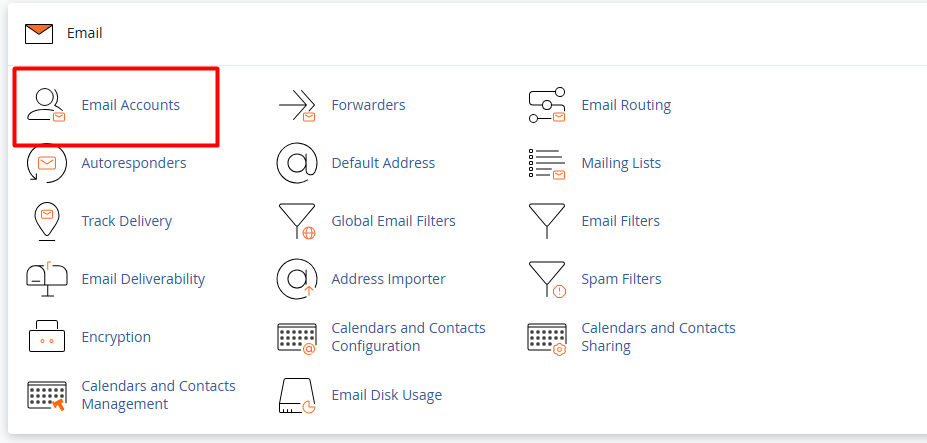
2. Once inside the panel, scroll down to the "Email" section and click on "Email Accounts" to view the list of existing addresses.
3. Identify and press the "+ Create" button, located in the upper right corner of the interface.

4. Create the Account:
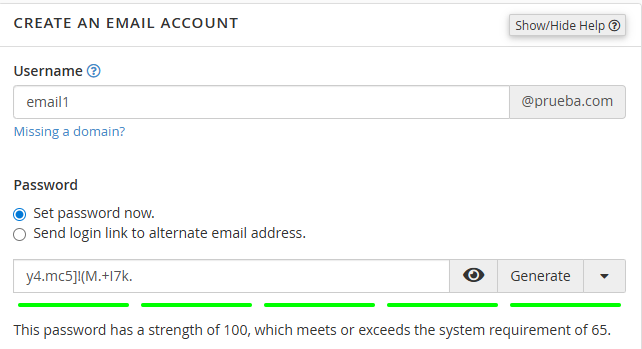
4.1. Domain: If your plan manages multiple domains, select the domain for the new account from the drop-down menu.
4.2. Username: Enter the desired prefix for your address (example., user@yourdomain.com).
4.3. Security: Set a strong password. It is recommended to use the "Generate" function to ensure the password meets the necessary security standards.
5. Additional Preferences:
5.1. Storage Space: Determine the disk space limit assigned to the account (in MB) or select the "Unlimited" option according to your needs.
5.2. Configuration Instructions: It is advised to keep the box checked to receive a welcome email with the initial technical settings.
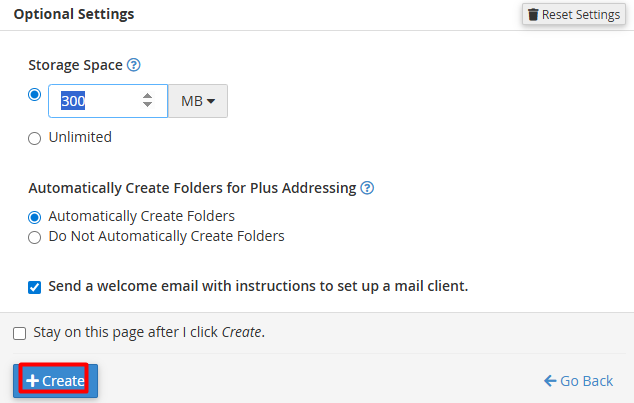
After verifying the data, press the "Create" button to finalize the account setup.
