How to create and configure your .htaccess file?

 
The .htaccess file is a powerful tool for managing your site's security and redirection. Follow these steps to generate it correctly from your control panel:


1. Log in to your cPanel account and, under the Files section, select the File Manager icon.
 

access.png


2. For security reasons, the system hides files that start with a dot (like .htaccess). To view it, follow these steps:


2.1. Click the Settings button (top right corner).
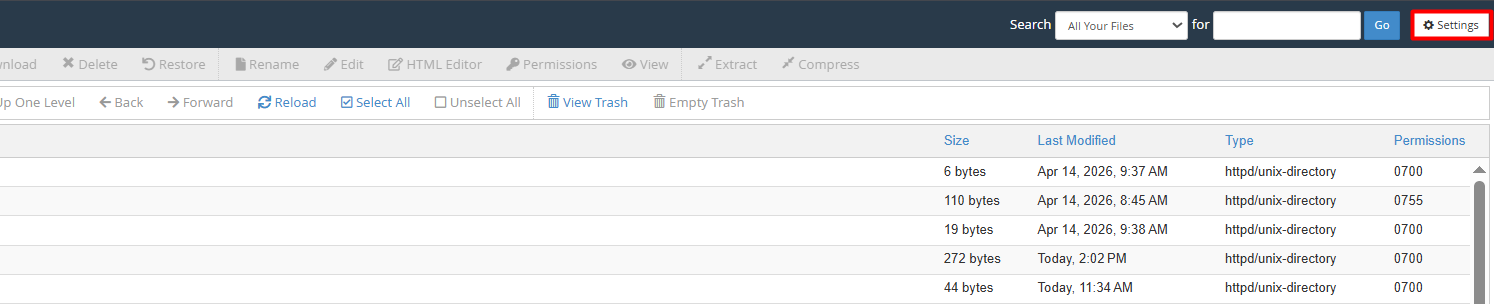
 

2.2. Check the box "Show Hidden Files (dotfiles)".
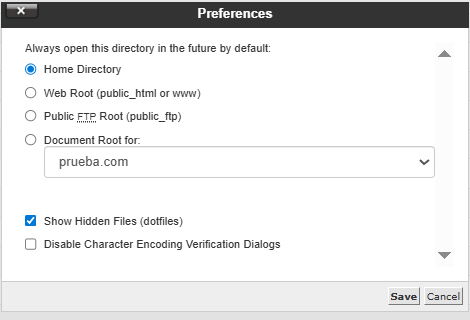


2.3. Press Save to apply the changes.


3. Generate the new file (Critical): Go to your site's root folder (usually public_html) and prepare to create the file:


3.1. Select the + File button in the top menu.


3.2. Type exactly this name: .htaccess (it is essential to include the leading dot and avoid extensions like .txt).
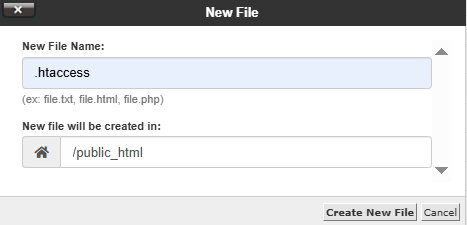


3.3. Confirm by clicking Create New File.


4. Edit and customize (Critical): Once created, it's time to add your rules or directives:


4.1. Right-click on the file and choose Edit.
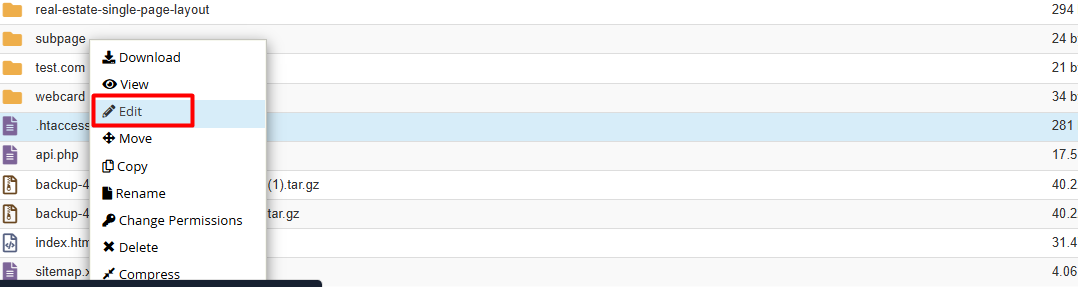


4.2. Enter the necessary code into the text editor.



4.3. When finished, don't forget to click Save Changes.

Security Note:  For optimal and protected performance, ensure the file permissions are set to 644.
 
  • 0 Users Found This Useful
Was this answer helpful?

Related Articles

How to create a Cron Job?

  A cron job is simply an automated task that runs on a server at specific time intervals. You...

How can I assign different PHP versions to my domains?

  If you manage multiple projects on a single account and need each domain or subdomain to run...

How can I change PHP values (limits, execution time, errors) using "MultiPHP INI Editor" (Basic Mode)?

  Here we will explain how to transcribe and adjust these values using the "MultiPHP INI Editor"...

How can I force the use of SSL (HTTPS) via the .htaccess file?

  To ensure your visitors always browse securely, you can automate the HTTPS redirection by...

How can I password protect my folders in cPanel?

  Ensuring the security of your information is simple. Follow this step-by-step guide to...